


Published April 22, 2025 by BOXX Technical Support
Tags: Support
BOXX Tech Support: Workstation Help, Drivers and Troubleshooting
Get support for your BOXX workstation, including setup guidance, driver resources, warranty information, BIOS and boot menu help, display troubleshooting, connectivity questions and performance support.
Start with the common support questions below, or contact BOXX Tech Support for additional help.
How can BOXX help?
| User need | Action | Where to go |
|---|---|---|
| I need technical help | Open a support ticket | https://boxx.com/support/hardware-technical-support |
| I want to speak with support | Call BOXX Tech Support | Call BOXX Tech Support at 1-877-877-2699 |
| I just received my BOXX system | View unBOXXing instructions | https://boxx.com/support/unboxxing |
| I need warranty details | Review BOXX warranty information | https://boxx.com/support/boxx-warranty |
Before contacting BOXX Tech Support
To help the BOXX support team troubleshoot faster, have the following ready:
- Your BOXX serial number
- Your workstation model, if known
- A short description of the issue
- Any error codes, screenshots or bluescreen messages
- Recent changes, such as new software, drivers, hardware or Windows updates
- Whether the issue happens consistently or only in certain applications
BOXX Tech Support FAQs
Contact BOXX Tech Support
How do I contact BOXX Tech Support?
You can contact BOXX Tech Support by phone, email or by opening a support ticket through the BOXX Hardware Technical Support page.
For the fastest support experience, include your BOXX serial number, workstation model, a short description of the issue and any relevant error messages or screenshots.
What should I have ready before contacting BOXX Tech Support?
Before contacting BOXX Tech Support, have your serial number, workstation model, issue description, error codes or screenshots, and any recent system changes ready.
This helps the support team understand the issue and troubleshoot more efficiently.
Where can I find my BOXX serial number?
Your BOXX serial number is typically located on the back or bottom of your BOXX product. For recent desktop models, the serial number may be located under the removable front grille.
Have this number ready when calling, emailing or opening a BOXX support ticket.
New BOXX Workstation Setup
How do I set up a new BOXX workstation?
If you recently received a new BOXX workstation, start with the unBOXXing setup instructions.
The unBOXXing page can help with initial setup steps, including monitor connections, accessories, Wi-Fi antennas, serial number location and when to contact BOXX Tech Support.
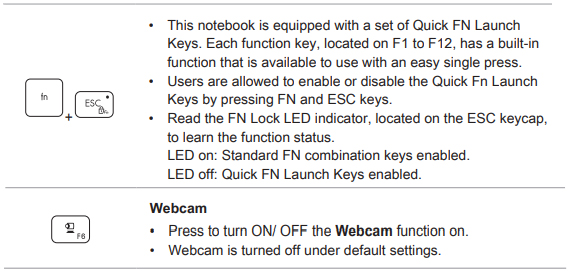
How do I enable the webcam on my GoBOXX SLM?
By default, the camera on the GoBOXX SLM is disabled and will not be visible until it is enabled through the soft switch.
To enable the camera, press Fn + F6. If the Fn keys are locked, press F6 instead. Once the camera is enabled, launch your video software or the Camera application to test it.
If the webcam still does not work after enabling the camera and checking your system settings, contact BOXX Tech Support for help.
Does my APEXX workstation have integrated speakers?
No. Integrated speakers are only available on GoBOXX laptops.
APEXX desk side systems must use monitor speakers or standard desktop speakers through the 3.5” stereo mini-jack connection. If you are unsure which audio setup is best for your workstation, contact BOXX Tech Support for help confirming your system configuration.
Windows, Drivers and Downloads
Where can I download Windows 11 installation media?
Windows 11 installation media can be downloaded from Microsoft. BOXX Tech Support can also help if you need guidance reinstalling Windows or confirming the correct setup path for your system.
If you are unsure whether a reinstall is the right next step, contact BOXX Tech Support before making system changes.
Where is my Windows activation code?
Any BOXX system purchased within the last 4 years is fitted with a digital Windows activation code, so manual entry is no longer required.
Install Windows, connect to the internet and auto-activation should take place within 48 hours. If Windows still does not activate after that, contact BOXX Tech Support for assistance.
Where can I download BOXX workstation drivers?
Drivers may be available through motherboard and GPU manufacturer websites, and BOXX support can help walk you through the correct driver path for your system.
Start with the BOXX Hardware Technical Support page for product manuals and support resources, or contact BOXX Tech Support if you are unsure which driver applies to your workstation.
Where can I find BOXX product manuals and drivers?
Product manuals and driver resources are available through the BOXX Hardware Technical Support page.
If you do not see the driver, manual or system information you need, contact BOXX Tech Support for help.
BIOS, Boot Menu and System Access
How do I enter the BIOS on my BOXX system?
The majority of BOXX systems use the DELETE key to enter the BIOS.
To enter the BIOS, restart your workstation and press DELETE during startup. Some GoBOXX MXL mobile workstations use F2 instead.
If you are not sure which key applies to your BOXX workstation, contact BOXX Tech Support for guidance before changing BIOS settings.
How do I access the boot menu on my BOXX system?
The boot menu key may vary depending on your BOXX system or motherboard.
- GoBOXX SLM and ASRock motherboard systems: F11
- Gigabyte motherboards: F12
- ASUS motherboards: F8
- Some GoBOXX MXL models: F7
To access the boot menu, restart your BOXX system and press the correct key during startup. The boot menu allows you to choose a temporary boot device, such as a USB drive.
If one of these keys does not work for your system, contact BOXX Tech Support for help.
Connectivity and Display Troubleshooting
Why is the Wi-Fi or Bluetooth slow on my BOXX APEXX workstation?
Slow Wi-Fi or Bluetooth performance may be related to the Wi-Fi antennas not being attached to the rear of the chassis.
The antennas are not attached to the system during shipping. You can find the antennas for your BOXX workstation in the media kit accessory box.
Attach the Wi-Fi antennas to the rear of the chassis, then test the connection again. If the issue continues, contact BOXX Tech Support for help troubleshooting the connection.
Why doesn’t my new APEXX desktop workstation display video?
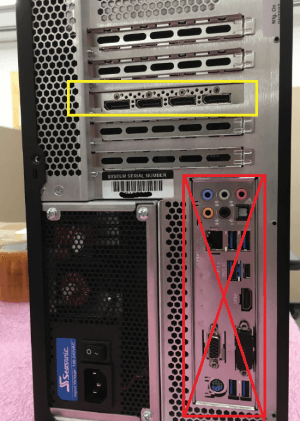
A common first-boot issue is connecting the monitor to the motherboard video output instead of the graphics card installed in the system.
For APEXX desktop workstations, confirm that the monitor is connected to the video card output. If the display still does not appear, check your monitor input, cable connection and power source before contacting BOXX Tech Support.
Why does my computer bluescreen?
A bluescreen can happen for several reasons, including driver issues, software conflicts, hardware changes, Windows updates or system configuration problems.
If your BOXX workstation bluescreens, write down the error code, take a photo if possible and note what you were doing when the issue happened. Then contact BOXX Tech Support with those details.
Warranty and Out-of-Warranty Support
What support is included with my BOXX warranty?
BOXX systems include warranty and support coverage for professional workstation users. The specific support options may vary by system type, location and coverage period.
Review the BOXX Warranty page for the most accurate warranty details for your system.
Can I still get BOXX support if my system is out of warranty?
Yes. BOXX can still help with support questions even if your system is out of warranty.
If your workstation needs troubleshooting, contact BOXX Tech Support with your serial number, system details and a description of the issue.
Performance and Overclocking Questions
Why does Windows show my overclocked APEXX workstation running at normal speed?
Windows does not report the actual CPU speed. It only reports the base speed the processor was initially designed for.
To check the overclocked speed, use the free Intel Processor Identification Utility. When you run the utility, it will show both the “reported” and “base” speeds. The “reported” speed reveals the actual overclocked speed.
If you have questions about your overclocked APEXX workstation, contact BOXX Tech Support for help confirming expected system behavior.
How do I optimize my BOXX workstation’s performance?
BOXX systems ship with a clean Windows installation, without unnecessary bloatware. This gives you a stable base for loading the programs you need.
Optimization depends on the software being used, so there is not one general set of recommendations that applies to every workstation or workflow. BOXXlabs optimizes hardware with overclocking where practical, and BOXX systems are built with enterprise-class components.
For application-specific performance guidance, the software support team for the program you are using may have additional recommendations. Because different programs work differently, a setting that improves performance for one application may reduce performance for another.
If you need help with your specific workstation configuration, contact BOXX Tech Support.
Support from workstation experts
BOXX Tech Support is built around professional workstation users and demanding workflows. When an issue requires deeper troubleshooting, the support team can work from direct knowledge of BOXX hardware, system configurations and common software environments.
Whether you are setting up a new workstation, troubleshooting performance, reviewing warranty coverage or trying to get back to work quickly, BOXX support is designed to help you move forward with confidence.
Still need help?
If you didn’t find your question or answer among these common inquiries, contact BOXX Tech Support for additional help.
When you buy a BOXX product, you have the advantage of U.S.-based, legendary BOXX Technical Support. Call us at 877.877.BOXX or visit BOXX Technical Support.
We’re ready to get you back to work.